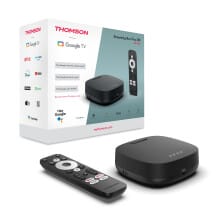

How to Set Up the Thomson 270 UK Plus Android Box for IPTV
Want to go from sealed box to live TV without getting stuck in menus? This guide walks you through the full Thomson 270 UK Plus Android box setup for IPTV, in the right order.
The box is a compact Android TV streamer that connects your TV to apps, live channels, and on-demand content. If you're new to IPTV, don't worry. You only need your TV, internet connection, remote batteries, and the login details from your IPTV provider.
Start simple, follow each step once, and the setup usually takes less time than you think.
What you need before you start the Thomson 270 UK Plus setup
Before you plug anything in, put the key items in one place. That saves time later, especially when the box asks for Wi-Fi or account details.
Here's the quick checklist:
| Item | Why you need it | | | | | Thomson 270 UK Plus box | The main device | | HDMI cable | Connects the box to your TV | | Power adapter | Turns the box on | | Wi-Fi password or Ethernet cable | Gets the box online | | Google account | Helps with app installs and sync | | IPTV login details | Needed to load channels and VOD | | Remote batteries | Needed for first setup |
A stable internet connection matters more than huge speed numbers. IPTV can work well on modest broadband if the line stays steady and your home network isn't overloaded.
If you want the official layout, ports, and first-install flow, the Thomson Plus 270 manual is a useful reference.
Check the box contents and pick the best place for it
Open the box and confirm you have the streaming unit, remote, power adapter, HDMI cable if included, and batteries if included. Some retail bundles vary, so it's smart to check first.
Place the box where air can move around it. Don't block the vents with books, fabric, or a tight cabinet. Heat is like mud for streaming boxes, it slows things down over time.
If you're using Wi-Fi, keep the box in an open spot. Thick walls, metal shelves, and crowded TV cabinets can weaken the signal. Also, place it where the remote has a clear line of use.
Have your IPTV login details ready before opening any app
Most IPTV services send one of three login types. The first is Xtream Codes, which usually includes a server URL, username, and password. The second is an M3U playlist URL, sometimes with a separate EPG link. The third is a portal or MAC-based setup, common on some apps and box styles.
Read your welcome email carefully. A username is not the same as an M3U link, and a portal URL is not the same as a web page address for billing. When you sort this out early, app setup moves much faster.
The most common setup mistake is using the wrong login format in the wrong app.
Set up the Thomson 270 UK Plus and finish the Android basics
Now it's time to connect the hardware and let Android finish its first-run tasks. Go in order, because skipping updates or rushing the network step often causes headaches later.
Connect the box to your TV, internet, and power the right way
First, connect the HDMI cable from the Thomson box to an open HDMI port on your TV. Next, plug in Ethernet if you plan to use wired internet. Then connect the power adapter.
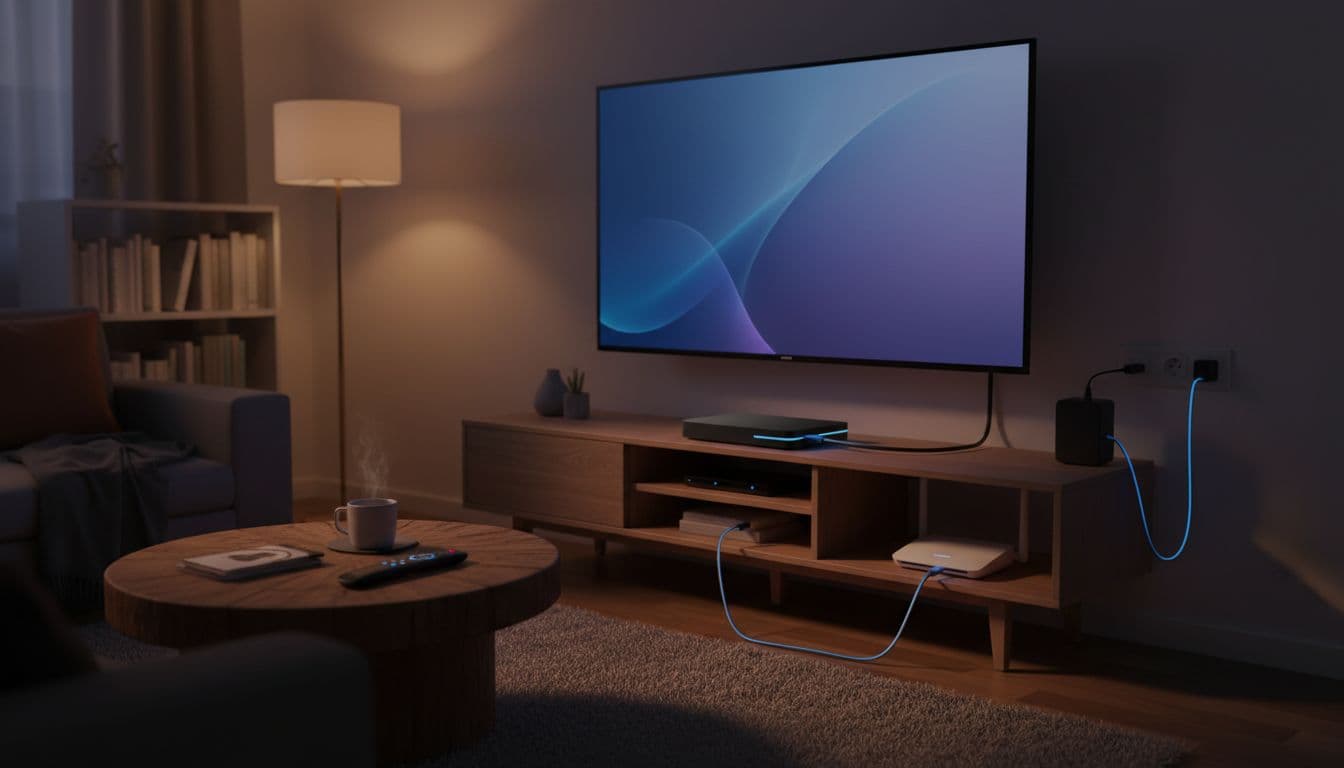
Turn on the TV and switch to the correct HDMI input with your TV remote. If you see no picture, double-check the input first. After that, reseat the HDMI cable on both ends and try another TV port if needed.
The first boot can take a few minutes. That's normal. Once the welcome screen appears, pair the remote if prompted, choose your language and region, then connect to Wi-Fi or confirm Ethernet is active.
Wired internet is often better for IPTV because it cuts interference and random drops. If Wi-Fi is your only option, use the 5 GHz band when available and keep the router nearby.
Change a few Android settings for better streaming performance
After the box reaches the home screen, head into settings before installing apps. Check the date and time first. If the time is wrong, EPG data and login requests can fail.
Then look for system updates. Let the box install them before loading IPTV apps. A small wait here can save you from app crashes later. If you need help with remote buttons during setup, the remote control page for the Thomson Plus 270 shows the layout clearly.
Match the display output to your TV. For most users, Auto works well. If the picture looks odd, set the resolution manually to 1080p or 4K based on the TV.
Also, keep some storage free. Android boxes don't like packed drives. Delete apps you won't use, and avoid side-loading random APKs from unknown sources. If you must install outside the Play Store, only allow installs from a trusted source and switch that permission off later.
Install an IPTV app and add your service details
The Thomson box doesn't play IPTV by itself from the home screen. You need an IPTV player app to load playlists, channel groups, guide data, and catch-up features.
Choose an IPTV player that works well on Android TV boxes
Look for an app with a TV-friendly layout. That means easy remote control, clear categories, favorites, search, EPG support, and support for catch-up if your provider offers it.
Some apps focus on clean live TV browsing. Others are better for movies and series. A few support external players, which can help if one stream format stutters.
If you want a broad look at app options, this roundup of IPTV players for Android TV shows the kinds of features people compare. You don't need the most complex app. You need one that reads your login format and feels easy to use every day.
Install the app from Google Play if it's available there. If your provider gives you an APK, download it carefully and confirm it matches the app they support.
Add your playlist or Xtream Codes login without mistakes
Open the IPTV app and choose the login method that matches your provider's email. If they sent Xtream Codes, enter the server URL, username, and password exactly as shown. If they sent an M3U URL, paste the full link without cutting off the start or end.
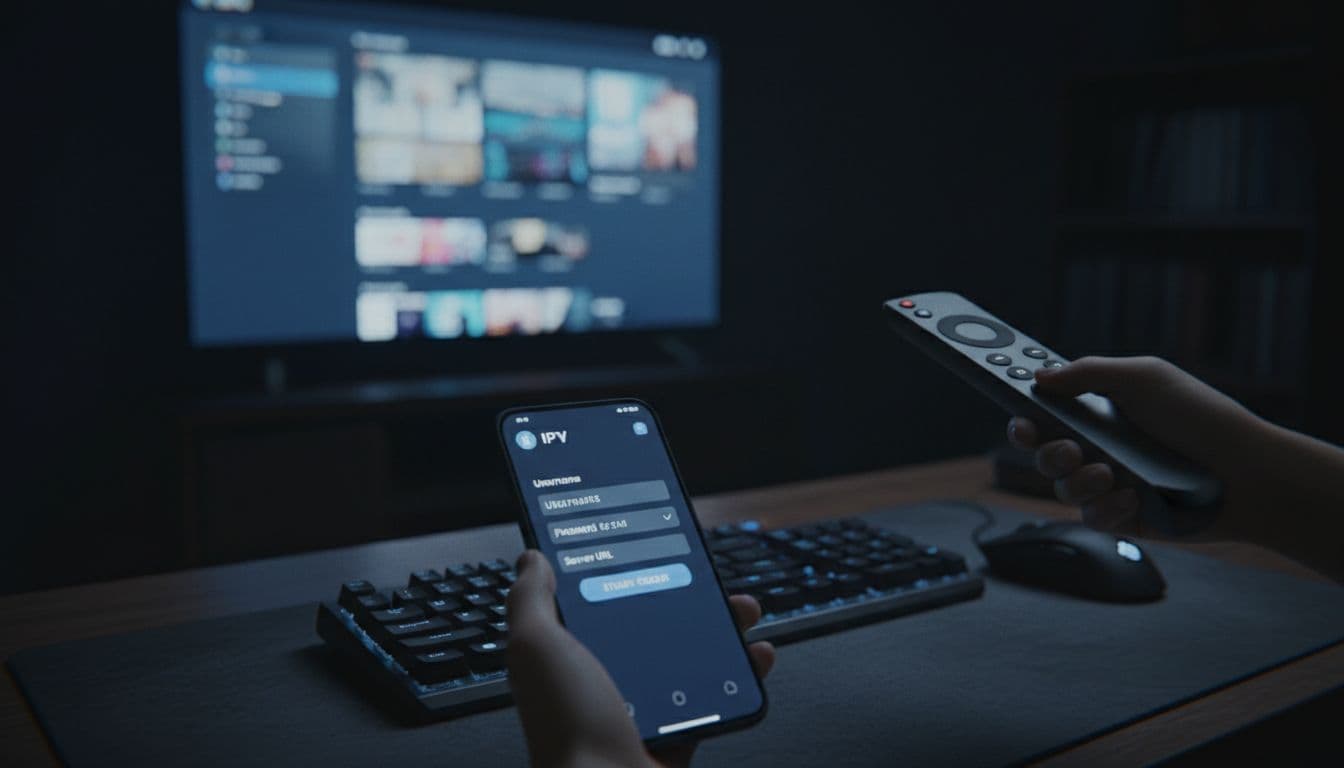
Small errors cause big delays. Extra spaces break logins. So do missing slashes, wrong ports, or using http when the provider sent https. Read character by character if needed.
Some providers send separate links for live TV, movies, and the guide. Others roll everything into one login. If you need a visual example of the format, this Xtream Codes setup guide can help you compare the fields.
After login, give the app time to download channels and guide data. Don't back out too early. Large playlists can take a few minutes on first load.
Make IPTV streaming look better and buffer less
Once channels load, the job isn't over. A few tweaks can improve picture quality and stop the spinning circle from showing up during the best part of a match or movie.
Use Ethernet, resolution, and player settings to cut buffering
Start with the easy fixes. Reboot the router, then reboot the Thomson box. If buffering stays, switch from Wi-Fi to Ethernet if you can. A cable often fixes what app settings can't.
Make sure the box output matches your TV. A forced 4K setting on an older 1080p screen can create odd playback problems. Also, try a different built-in player inside the IPTV app. Some streams work better with one player than another.
Only change buffer size if the app gives that option and streams keep stopping. Too much tinkering can make things worse. For more general ideas, this Android IPTV buffering guide covers the common causes.
Set up the TV guide, favorites, and catch-up for easier watching
A good guide makes the box feel less like a project and more like a normal TV setup. First, sync the EPG and check the app time zone. If the guide is off by hours, the time setting on the box or inside the app is usually the reason.
Next, add favorite channels. Put sports, news, kids, and local picks where you can reach them fast. That keeps you from scrolling through hundreds of channels every night.
Catch-up and replay only work if your provider supports them. If the feature appears empty, that doesn't always mean the app is broken. It may simply not be included on that package or channel group.
Fix the most common Thomson 270 UK Plus IPTV problems
Most problems fall into a short list: no TV signal, failed app install, login rejected, channels not loading, buffering, sound delay, or remote issues. Before doing anything else, restart the app and restart the box.
If the TV says no signal, check the HDMI input and cable. If the app won't install, make sure there's enough storage and that the APK matches Android TV. If audio drifts out of sync, switch players or restart the stream.
What to do if channels won't load or the app says login failed
Recheck the account status with your provider first. Then verify the server URL, username, password, or playlist link. One wrong character is enough to block access.
Also, check how many connections your plan allows. If the account only supports one device and another screen is already active, the login may fail or streams may stop.
When you want to rule out your home network, test the box on a mobile hotspot for a few minutes. If it works there, the issue likely sits with your router, DNS, or ISP path rather than the app itself.
When a factory reset makes sense, and what to save first
A factory reset is the last step, not the first. Use it after you've tried restart, updates, app reinstall, and network testing.
Before resetting, save your IPTV login details, app names, favorites if possible, and any display or audio settings you changed. The reset wipes local data, so think of it like clearing the whole desk, not moving one paper.
The very Best IPTV Streaming Service (ai-iptv.com)
If you're looking for a service to pair with the Thomson 270 UK Plus, AI-IPTV is built around the kind of setup this box handles well. The service presents itself as an IPTV option for live sports, movies, TV series, catch-up TV, and sports replays, with support for Android TV boxes and other common devices.
The site also highlights daily EPG updates, apps for multiple device types, and plans that include single-device and multiroom options. For users who want one place to get service access and setup help, AI-IPTV is positioned as a practical fit for this style of Android box.
The right order makes all the difference: connect the box, finish Android setup, install an IPTV player, add your login details, then tune playback. Miss one of those steps, and small problems can pile up fast.
Most issues come down to two things, network stability and typing details correctly. Use Ethernet when you can, read every login field carefully, and your Thomson 270 UK Plus should feel simple from day one.
If your streams still act up, go back one step at a time. The fix is usually smaller than it first seems.