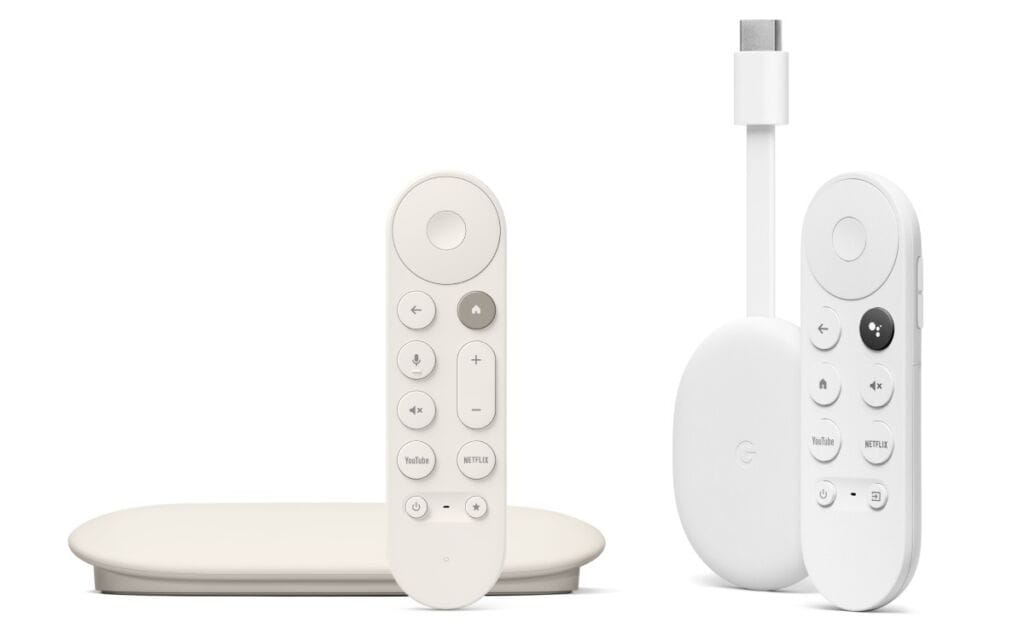

Setting Up Google IPTV Devices
A step-by-step guide to configuring AI-IPTV on Google TV, Android TV, and Chromecast devices — so you can enjoy live sports, movies, and series in minutes.
What You Will Need
- A Google TV, Android TV, or Chromecast with Google TV device
- An active AI-IPTV subscription (M3U playlist URL or Xtream Codes credentials)
- A stable internet connection (minimum 25 Mbps recommended for HD/4K)
- A compatible IPTV player app: TiviMate, IPTV Smarters Pro, or AI-IPTV very own Apps Horizons App just add username & Password we send you when you sign up
Step-by-Step Installation Guide
Thomson 140 4K UHD – Setup & AFTV Installation Guide or any google device
Follow each step carefully to configure your device and install the AFTV application.
Step 1 – Sign In
Log in with your Gmail account.
Step 2 – Google Services Setup
Turn Location → Off
Turn "Help Improve Google TV" → Off
Press Accept to continue.
Steps 3–5 – Skip Prompts
Select No Thanks when prompted. Repeat No Thanks for each subsequent screen.
Step 6 – Confirm
Press Confirm to proceed to the next stage of setup.
Step 7 – Remote Setup (Optional)
Set up your remote now, or press Not Now to skip this step.
Step 8 – System Update
Allow Google TV to update and install required components. This process takes approximately 5 minutes.
Step 9 – Launch Google TV
Once the update is complete, click Go to Google TV to launch the interface.
Steps 10–13 – Enable Developer Options
Press the Settings button on your remote → Select All Settings → Open System → Select About → Scroll to Android TV OS Build → Tap 7–8 times until Developer Options are activated.
Step 14 – Install AFTV Downloader App
Navigate to apps then scroll down to search Apps type in AFT News downloader and install it in your device
Follow the on-screen instructions to complete the installation.
Open up downloader from your home page and in the browser bar put a code to install our apps that we send you via a email just username and password
Step 1 — Install a Player App
Open the Google Play Store on your device. Search for AFT News Downloader and install then just add our very own code to install our apps like TiviMate or IPTV Smarters Pro and install your preferred player. Both apps are free to download with optional premium upgrades.
Step 2 — Add Your Playlist
Launch the player app and navigate to Add Playlist. Enter your username & Passoword or your Xtream Codes server address, username, and password provided in your welcome email.
Step 3 — Load & Browse Channels
Once the playlist loads, your full channel library will appear — organised by category. Browse live sports, premium movies, and thousands of TV series. Select any channel to begin streaming instantly.
Optimisation Tips for the Best Experience
- Use a wired Ethernet connection whenever possible to eliminate buffering caused by Wi-Fi interference.
- Enable hardware decoding in your player settings to reduce CPU load and improve 4K playback.
- Set buffer size to 5–10 seconds in TiviMate for smoother live stream transitions.
- Restart your device weekly to clear cache and maintain optimal performance.
- Keep your player app updated to benefit from the latest codec support and bug fixes.
Frequently Asked Questions
Is TiviMate free on Google TV?
TiviMate is free to install and supports one playlist. The Premium upgrade (one-time purchase) unlocks multiple playlists, EPG, and recording features.
What internet speed do I need?
We recommend a minimum of 10 Mbps for HD-SD and 25 Mbps for 4K streams. A wired connection is always preferred over Wi-Fi for live content.
Ready to Stream? Activate Your AI-IPTV Plan Today
Join thousands of satisfied subscribers enjoying premium live TV, sports, and on-demand content on their Google devices — with 24/7 support included.