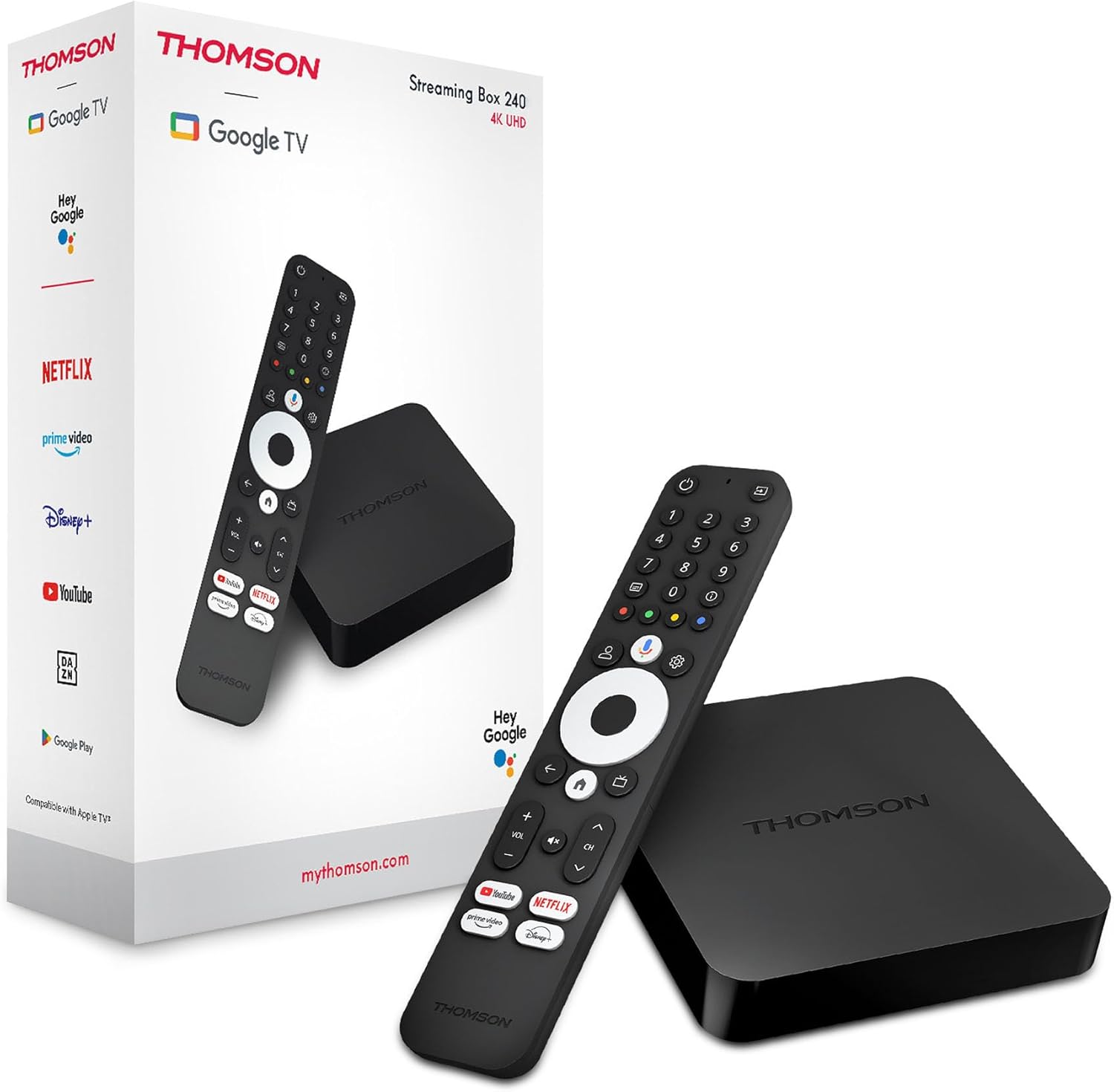

Thomson 240 4K UHD – Setup & AFTV Installation Guide
Step 1 – Sign In
Log in with your Gmail account.
Step 2 – Google Services Setup
Turn Location → Off
Turn “Help Improve Google TV” → Off
Press Accept
Step 3–5 – Skip Prompts
Select No Thanks when asked.
Repeat No Thanks for the following screens.
Step 6 – Confirm
Press Confirm to continue.
Step 7 – Remote Setup (Optional)
Set up your remote now, or press Not Now to skip.
Step 8 – Update
Allow Google TV to update/install (about 5 minutes).
Step 9 – Launch Google TV
Once finished, click Go to Google TV.
Enable Developer Options
Step 10 – Open Settings
Press the Settings button on your remote.
Select All Settings
Step 11 – Go to System
Open System.
Step 12 – About
Select About.
Step 13 – Enable Developer Options
Scroll to Android TV OS Build.
Tap 7–8 times until Developer Options are activated.
Install AFTV App
Step 14 – Add Apps
Press Home.
Select Add Apps.
Step 15 – Download AFTV
Search for AFTV.
Download & install.
Update Apps
Step 16 – Return Home
Press the Home button.
Step 17 – Go to Settings
Open Settings → All Settings.
Step 18 – Update Apps
Go to Apps → Manage Updates.
Select See Available Updates.
Press Update All.
Final Setup
Step 19 – Open Downloader
Open the AFTV/Downloader app.
Step 20 – Enter Code
Enter your Downloader code.
Step 21 – Install Apps
Download the app you want.
When prompted with “Downloader – For Security, Allow Unknown Apps”, press Settings.
Step 22 – Allow Unknown Apps
Toggle Allow from this source → ON.
Step 23 – Install
Press Install (or Install Anyway if prompted).
Step 24 – Open App
Once installed, press Open to launch the app.
Step 1 – Sign In
Log in with your Gmail account.
Step 2 – Google Services Setup
Turn Location → Off
Turn “Help Improve Google TV” → Off
Press Accept
Step 3–5 – Skip Prompts
Select No Thanks when asked.
Repeat No Thanks for the following screens.
Step 6 – Confirm
Press Confirm to continue.
Step 7 – Remote Setup (Optional)
Set up your remote now, or press Not Now to skip.
Step 8 – Update
Allow Google TV to update/install (about 5 minutes).
Step 9 – Launch Google TV
Once finished, click Go to Google TV.
Enable Developer Options
Step 10 – Open Settings
Press the Settings button on your remote.
Select All Settings
Step 11 – Go to System
Open System.
Step 12 – About
Select About.
Step 13 – Enable Developer Options
Scroll to Android TV OS Build.
Tap 7–8 times until Developer Options are activated.
Install AFTV App
Step 14 – Add Apps
Press Home.
Select Add Apps.
Step 15 – Download AFTV
Search for AFTV.
Download & install.
Update Apps
Step 16 – Return Home
Press the Home button.
Step 17 – Go to Settings
Open Settings → All Settings.
Step 18 – Update Apps
Go to Apps → Manage Updates.
Select See Available Updates.
Press Update All.
Final Setup
Step 19 – Open Downloader
Open the AFTV/Downloader app.
Step 20 – Enter Code
Enter your Downloader code.
Step 21 – Install Apps
Download the app you want.
When prompted with “Downloader – For Security, Allow Unknown Apps”, press Settings.
Step 22 – Allow Unknown Apps
Toggle Allow from this source → ON.
Step 23 – Install
Press Install (or Install Anyway if prompted).
Step 24 – Open App
Once installed, press Open to launch the app.